Post · 4 min read · 30 October 2026 · Irfan
How to watch 4 live channels at once on Apple TV and iPad
Watch 4 live channels at once on Apple TV or iPad with Bigplay Multi-View: how to add channels, choose the sound, and fix the things that get in the way.
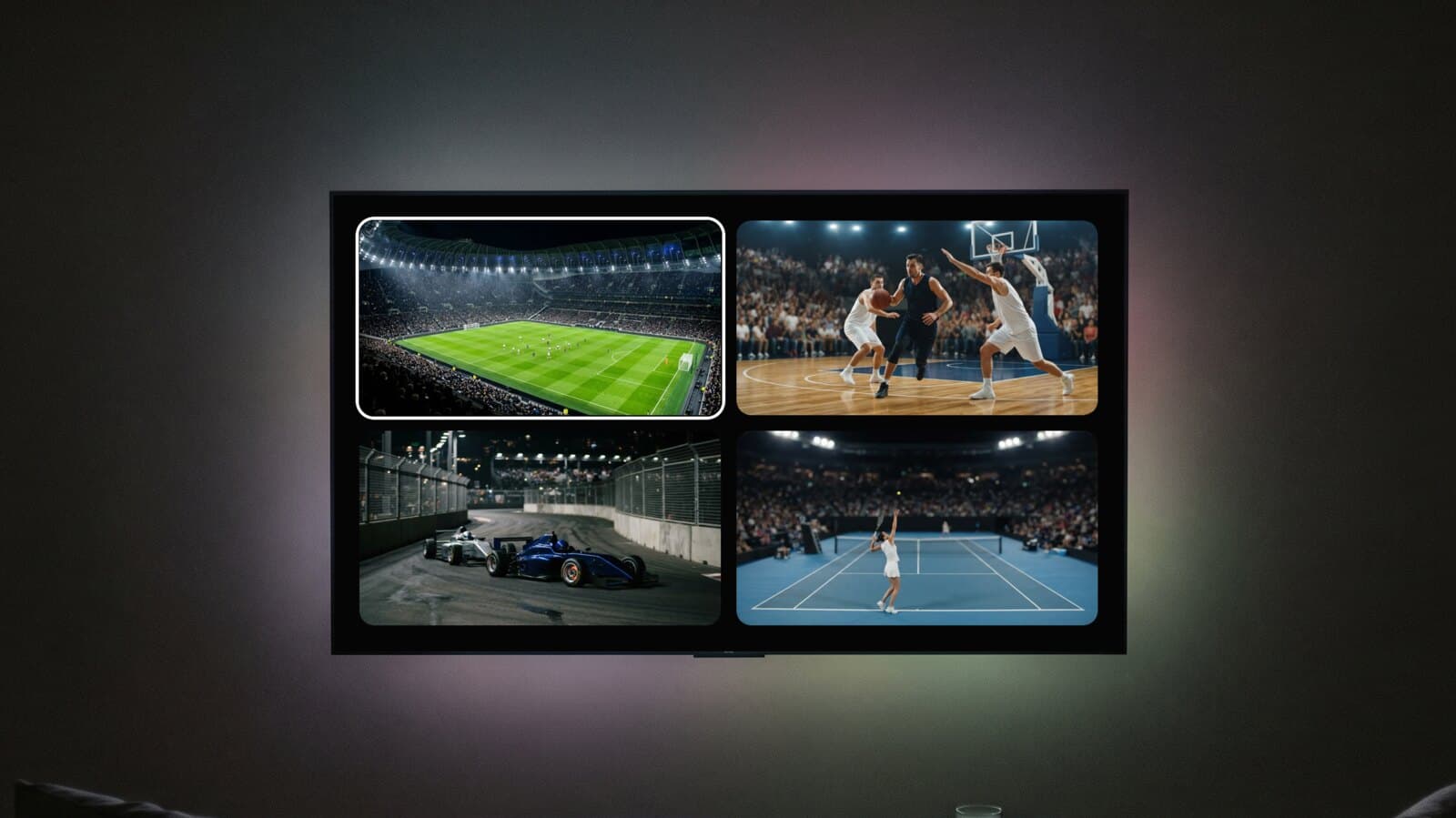
Two matches kick off at the same time and you have one screen. Flick between them and the goal always lands on the one you just left. Multi-View fixes that: up to four live channels on one screen, from the playlist you already have.
This guide covers the steps on Apple TV and iPad, how the sound works, and the few things that can get in the way. If you are starting from nothing, watch 4 live channels at once with Bigplay by adding your playlist first.
What you need
A playlist. An M3U or Xtream Codes playlist from your provider. Bigplay is a player. It doesn't include any channels or content.
Bigplay on Apple TV or iPad. It is free to download.
Pro, for three or four channels. Free shows two channels at once. Pro shows four.
A device that can decode four. Every Apple TV 4K can. Apple TV HD and iPads with less than 4 GB of memory stop at two channels, with or without Pro, because the limit is the hardware.
How to watch four channels on Apple TV
Open Live TV and select a channel. Select it again, or press Play, to go full screen.
Bring up the player controls and choose Multi-View. Your channel becomes the first tile.
Choose Add a channel. Pick from your Favourites or Recently Watched, or search all your channels.
Repeat until you have four. The tiles rearrange themselves each time.
There is a shortcut too. In Live TV, hold Select on any channel and choose Add to Multi-View.
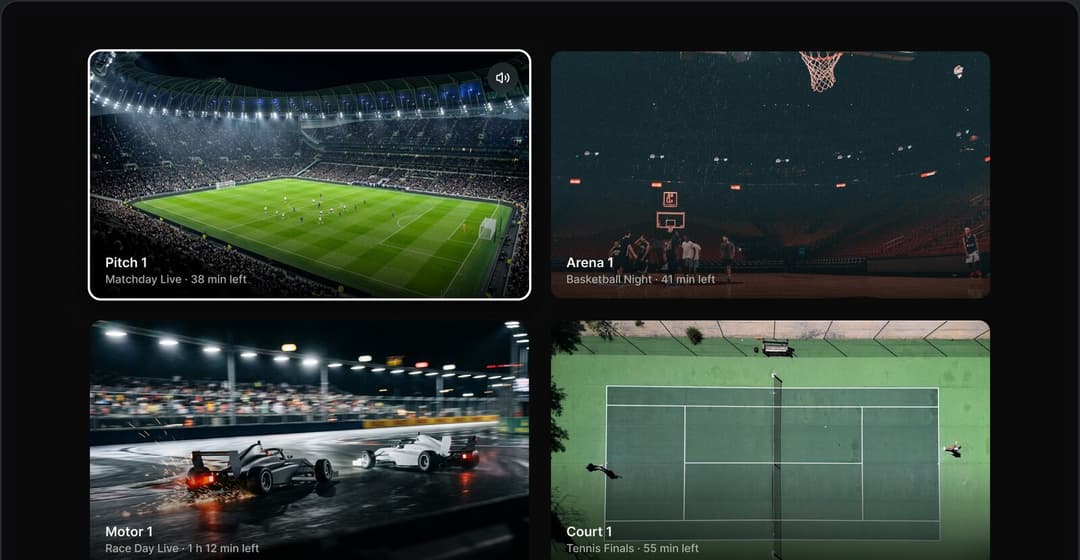
Using it with the Siri Remote
Move to a tile and the sound follows you a moment later. You don't have to press anything.
Press Select to make that channel big. The others move to the side. Press Up and Down to choose another.
Hold Select for options: make it big, change the channel, or remove it from Multi-View.
Press Back to step out.
How to watch four channels on iPad
Open Live TV and play a channel.
Tap the Multi-View button, the four squares next to the heart. Your channel becomes the first tile.
Tap + at the top right and pick a channel. The list tells you how many more will fit. You can also tap a channel in Live TV to add it.
Repeat until you have four.
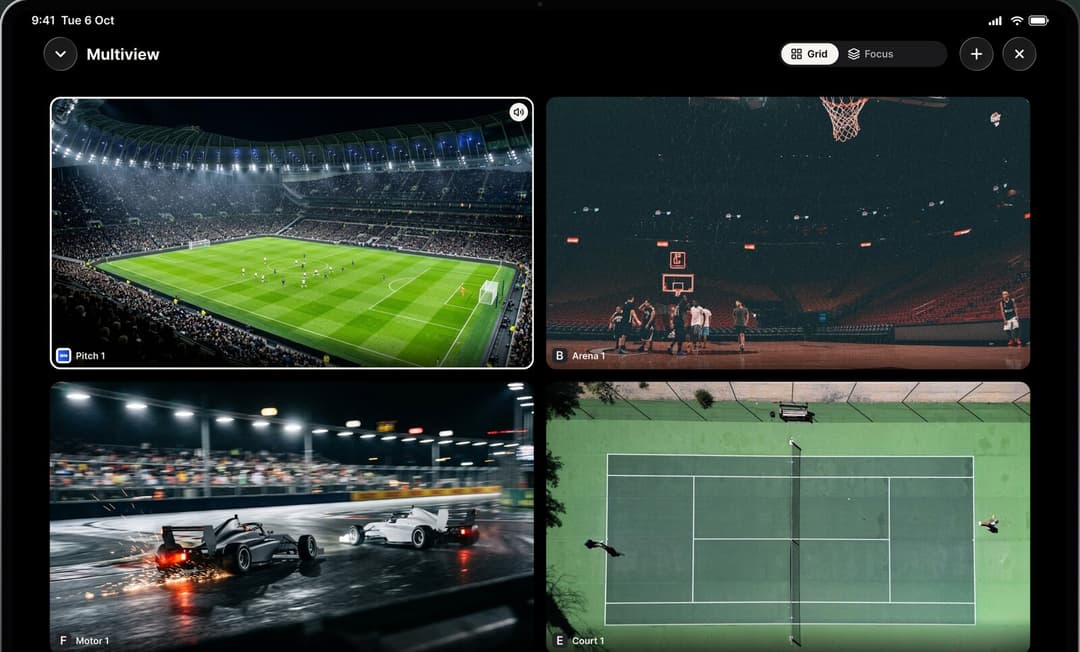
Using it with your fingers
Tap a picture to hear it. Only one channel plays sound at a time.
Double-tap a picture for full screen.
Long-press for options: full screen, make it the big one, swap the channel, or remove it.
Tap × at the top right when you are done.
Grid or Focus
Grid gives every channel the same size, which suits four matches you care about equally. Focus makes one channel big and keeps the others beside it, which suits one main match and the rest as a watching brief. On iPad, the switch sits at the top of the screen. On Apple TV, making a channel big does the same job. Bigplay remembers the layout you chose.
If something doesn't work
A tile stops or won't start. Each tile is its own stream, so it uses its own connection to your provider, and some plans only allow one or two at a time. Bigplay retries by itself. If the tile stays stopped, select it to try again, or remove it and carry on with fewer. If it happens every time, ask your provider how many connections your plan includes.
The pictures stutter. Four streams use about four times the data of one. Remove a tile, or move to a stronger connection.
You see "too warm to add another channel". Your iPad is protecting itself. Remove a tile and give it a few minutes.
The Multi-View button is missing. Multi-View is for live channels only, so it won't appear on catch-up, films or series. It also can't run while you are casting, so stop AirPlay or Chromecast first.
Common questions
Can I watch four channels for free?
Free shows two channels at once. Three and four need Pro, which also removes ads and adds downloads and more playlists. The price is in the app.
Does Multi-View work on iPhone and Android?
Yes. On iPhone it works much like iPad, and Multi-View is on Android phones, tablets and Android TV too. Older phones may stop at two channels.
Can I hear two channels at once?
No. One channel plays sound at a time, and the white ring shows you which one.
That is all of it. Next time two kick-offs clash, pick your four and stop flicking. If you get stuck, the help page has more on playlists and playback.
More from the blog
Post · 6 min read
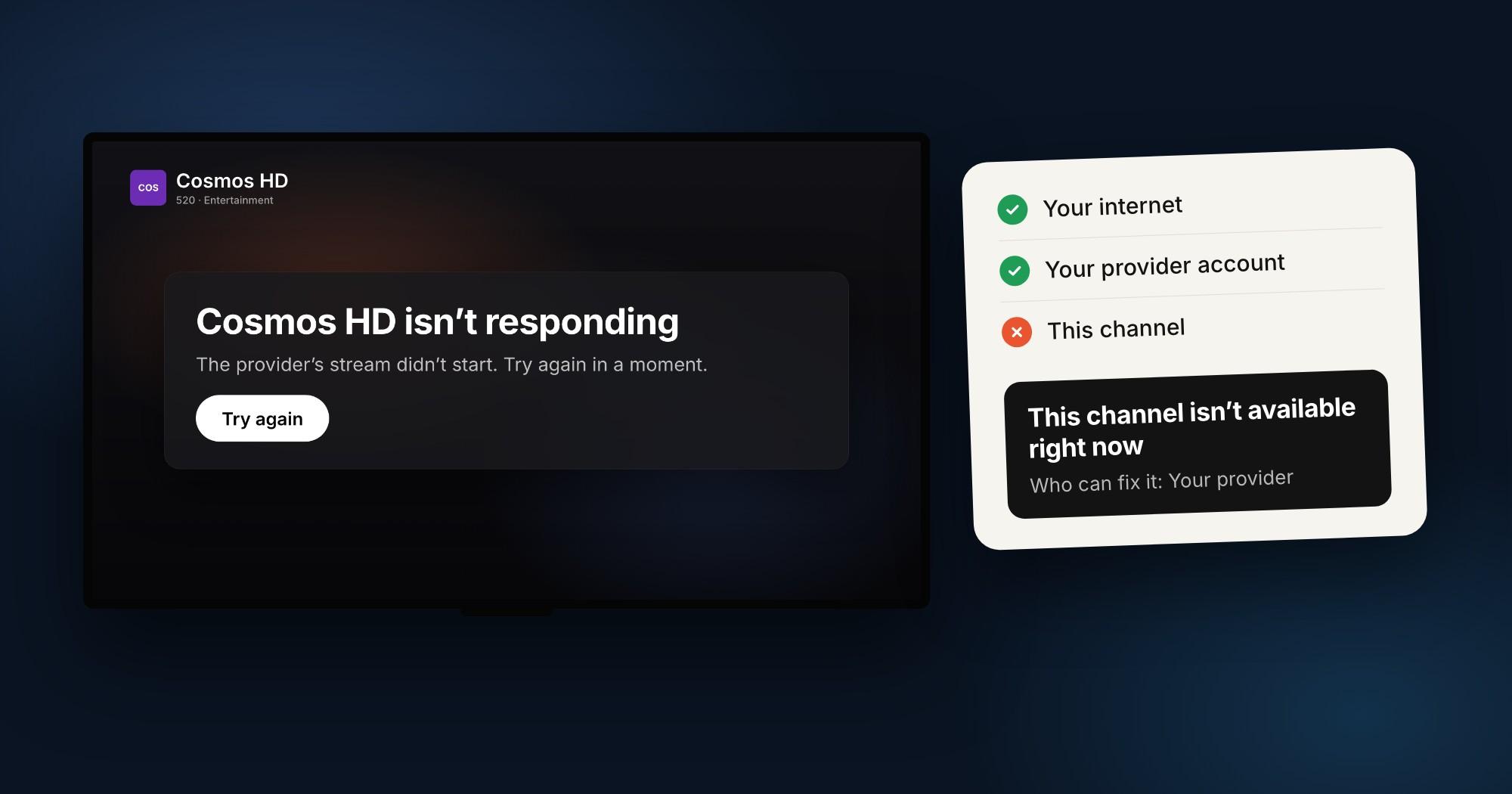
IPTV channel won't play? What each message means
What each IPTV playback message means in Bigplay, from isn't responding to the stream ended early, and the checks and settings that get a channel playing.
24 November 2026
Post · 5 min read
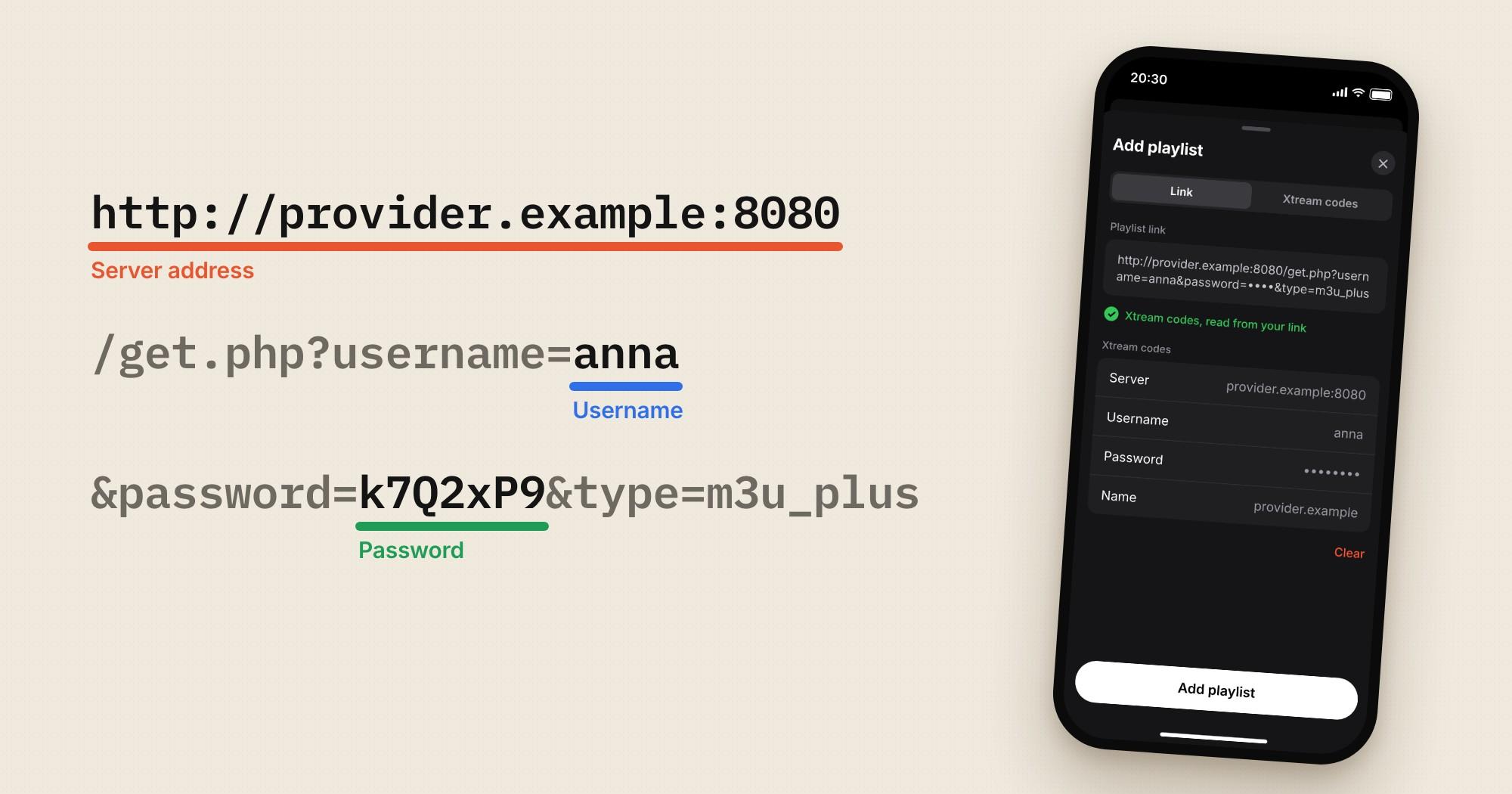
Find your Xtream Codes server, username and password
Your IPTV provider sent a server, username and password, or one long link. Where to find each part, how to read them from an M3U link, and what to type.
24 November 2026
Post · 5 min read
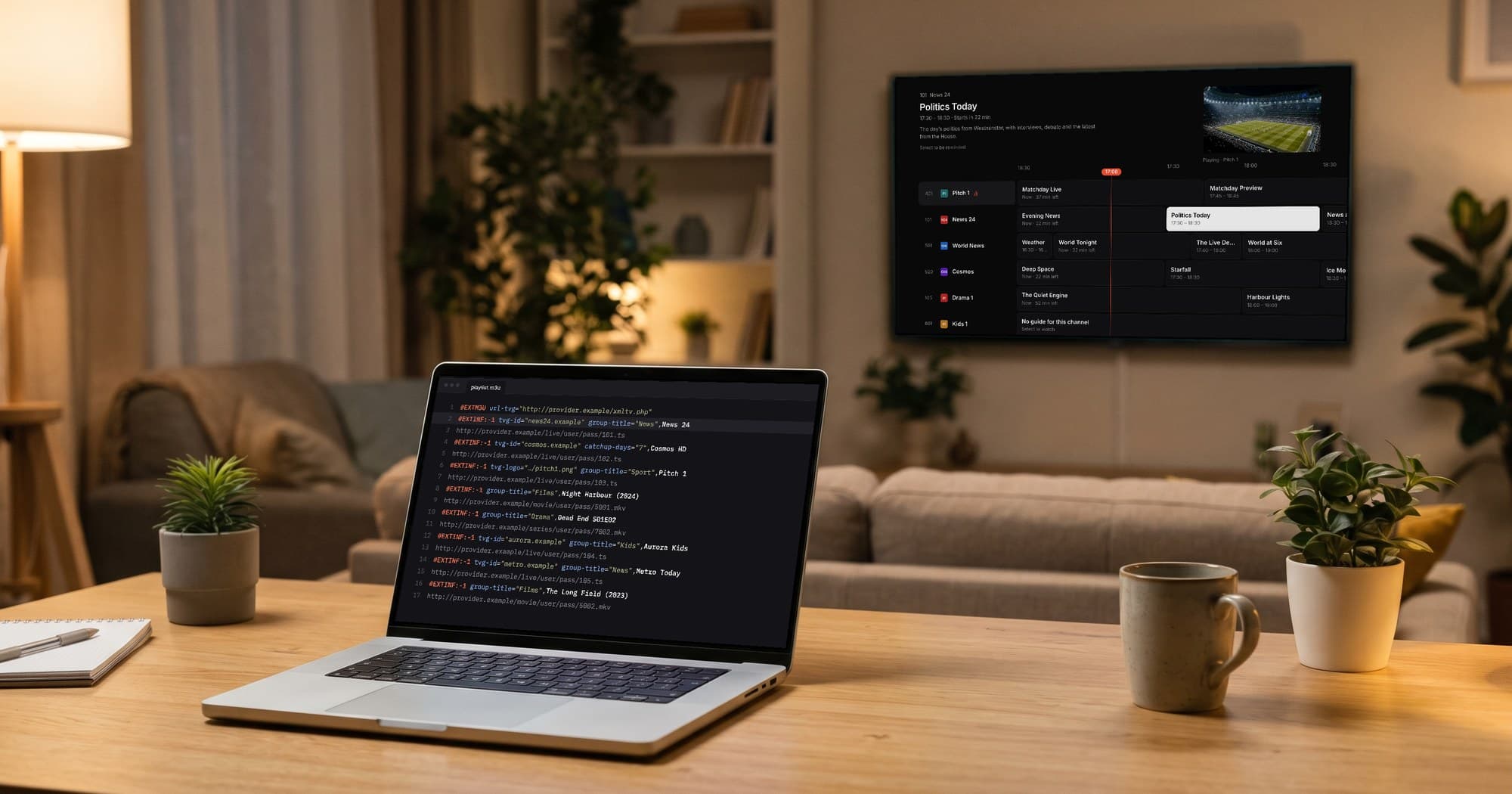
M3U file format: #EXTINF and tvg tags explained
Open an M3U playlist and it's mostly #EXTINF lines. Here's what each tag means, from tvg-id and tvg-logo to group-title, and how Bigplay uses them.
5 November 2026
Go on. Press play.