Post · 5 min read · 24 November 2026 · Irfan
Find your Xtream Codes server, username and password
Your IPTV provider sent a server, username and password, or one long link. Where to find each part, how to read them from an M3U link, and what to type.
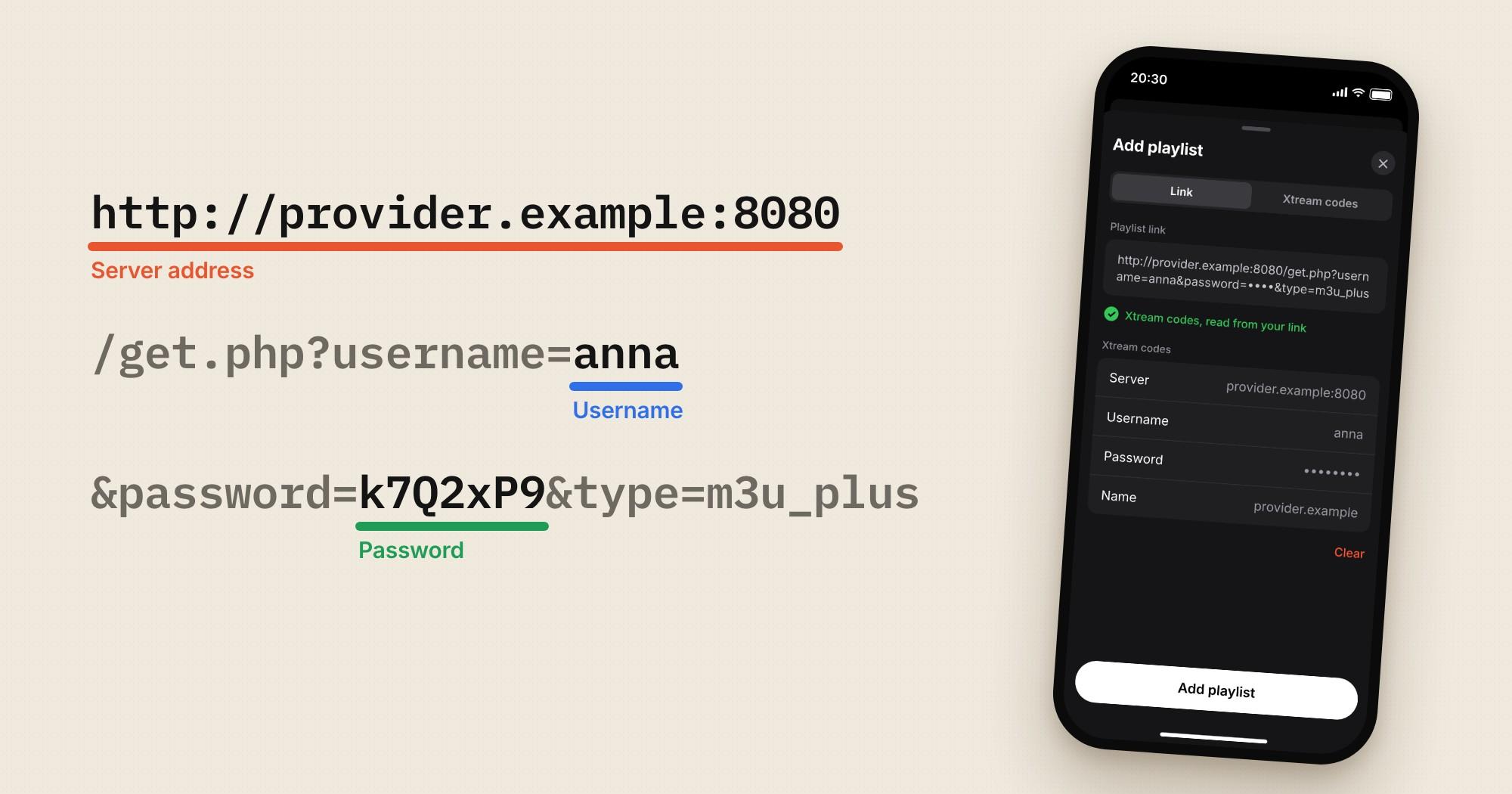
Your IPTV provider sent you a login, and the player wants three things: a server address, a username and a password. Sometimes they arrive neatly labelled. Often they're buried in a welcome email, a chat message or one long link. Here's how to find each one, and how to let Bigplay do the work.
The three parts of an Xtream Codes login
Server address: your provider's web address, usually with a port number, like
http://provider.example:8080. Providers also call it the host, URL, portal URL, DNS or server.Username: the account name your provider created for you.
Password: the password that goes with it. It's often a string of letters and numbers your provider picked, not one you chose.
All three come from your provider. Bigplay is a player. It doesn't include any channels or content, so it can't create or recover a login for you.
Where providers usually put them
The welcome email or message you got when you subscribed. Search your inbox for "Xtream", "username" or "host".
Your account page on the provider's website, often under a heading like "Subscription details" or "My lines".
Inside the M3U link they gave you. Most M3U links are an Xtream login in disguise, which is the easiest place to find it.
Reading a login out of an M3U link
A typical M3U link from an Xtream provider looks like this:
http://provider.example:8080/get.php?username=anna&password=k7Q2xP9&type=m3u_plus&output=tsSplit it at the question mark and the & signs, and the login falls out:
Server address is everything before
/get.php:http://provider.example:8080Username is the value after
username=:annaPassword is the value after
password=:k7Q2xP9
The rest (type=m3u_plus, output=ts) only tells the server what format to send. You don't need it for an Xtream login. Some links use player_api.php instead of get.php, and work the same way.
Let Bigplay read the link for you
You don't have to split the link by hand.
iPhone and iPad: paste the whole link into the Link option when you add a playlist and tap Continue. Bigplay shows "Xtream codes, read from your link" with the server, username and password filled in, and adds it as an Xtream playlist.
Apple TV: choose Link and paste or type it, or scan the code on screen and paste it on your iPhone. Bigplay recognises the login in the same way.
Android phones and tablets: paste it into the M3U URL field when you add a new playlist. If the login in the link works, Bigplay uses it as Xtream. If it doesn't, Bigplay loads it as an ordinary M3U playlist instead.
Using it as Xtream matters, because an Xtream login brings the TV guide with it and updates straight from your provider. M3U or Xtream Codes: what's the difference? explains why.
Typing the login in yourself
If your provider gave you the three parts separately, choose Xtream codes (Xtream API on Android) and fill in:
Server address on Apple devices, Server URL on Android. Type it as your provider wrote it, including the port after the colon. You can leave out
http://, because Bigplay adds it. Don't paste the whole M3U link into this field: it needs only the part before/get.php.Username and Password, exactly as sent. Both are usually case sensitive, so
Annaandannaare different logins.Name is just what Bigplay calls the playlist. On Apple devices it's optional and defaults to the server's name. On Android it's required.
On Apple TV and Android TV you don't have to type with the remote. Scan the code on the TV with your phone, fill the form in there, and it appears on the TV. The step-by-step guides for Apple TV, iPhone and iPad and Android and Android TV walk through each screen.
When the login is turned down
Bigplay checks the login with your provider before adding it, and says what came back. The wording differs a little by device:
Wrong username or password. On iPhone and iPad: "Authentication failed. Check your username and password." On Apple TV: "didn't accept that username and password." On Android: "The provider rejected this playlist's username or password." Check for a stray space or a letter in the wrong case.
The account has expired. "Your account has expired. Contact your provider." on iPhone and iPad, "says this account has expired" on Apple TV, and "This playlist's subscription has expired." on Android. Renew with your provider.
The account is switched off. "Your account has been disabled. Contact your provider." Only your provider can say why.
Too many screens. "Connection limit reached." on iPhone and iPad, "says too many screens are watching" on Apple TV, and "This playlist has reached its connection limit." on Android. Stop watching on another device and try again.
The address is wrong or the server isn't answering. Check the server address and port, then try again in a minute. If it keeps happening, ask your provider whether the address has changed.
On iPhone, iPad and Apple TV, an expired, switched-off or full account can still be added with Add anyway. Renew with your provider and Bigplay picks it up the next time it checks. IPTV playlist won't load? covers the other errors.
Checking your account later
Once the playlist is added, Bigplay shows what your provider reports about the account:
iPhone and iPad: open the playlist's details from You, then Playlists. You'll see the server, when the account expires (or "No expiry"), how many screens are in use out of how many you're allowed, and whether it's a trial. You can ask for a reminder before it expires.
Apple TV: open Settings, then Playlists, to see the username, connections and expiry date.
Android: the playlist card shows the expiry date and the number of connections allowed.
Keep your login private
Your username and password are the whole key to your account, and so is any M3U link that contains them. Anyone who has them can watch on your plan and use up your connections. Don't post them in forums, groups or screenshots, and only type them into apps you trust.
Ready to add it? Bigplay plays your Xtream Codes login on iPhone, iPad, Apple TV and Android.
More from the blog
Post · 6 min read
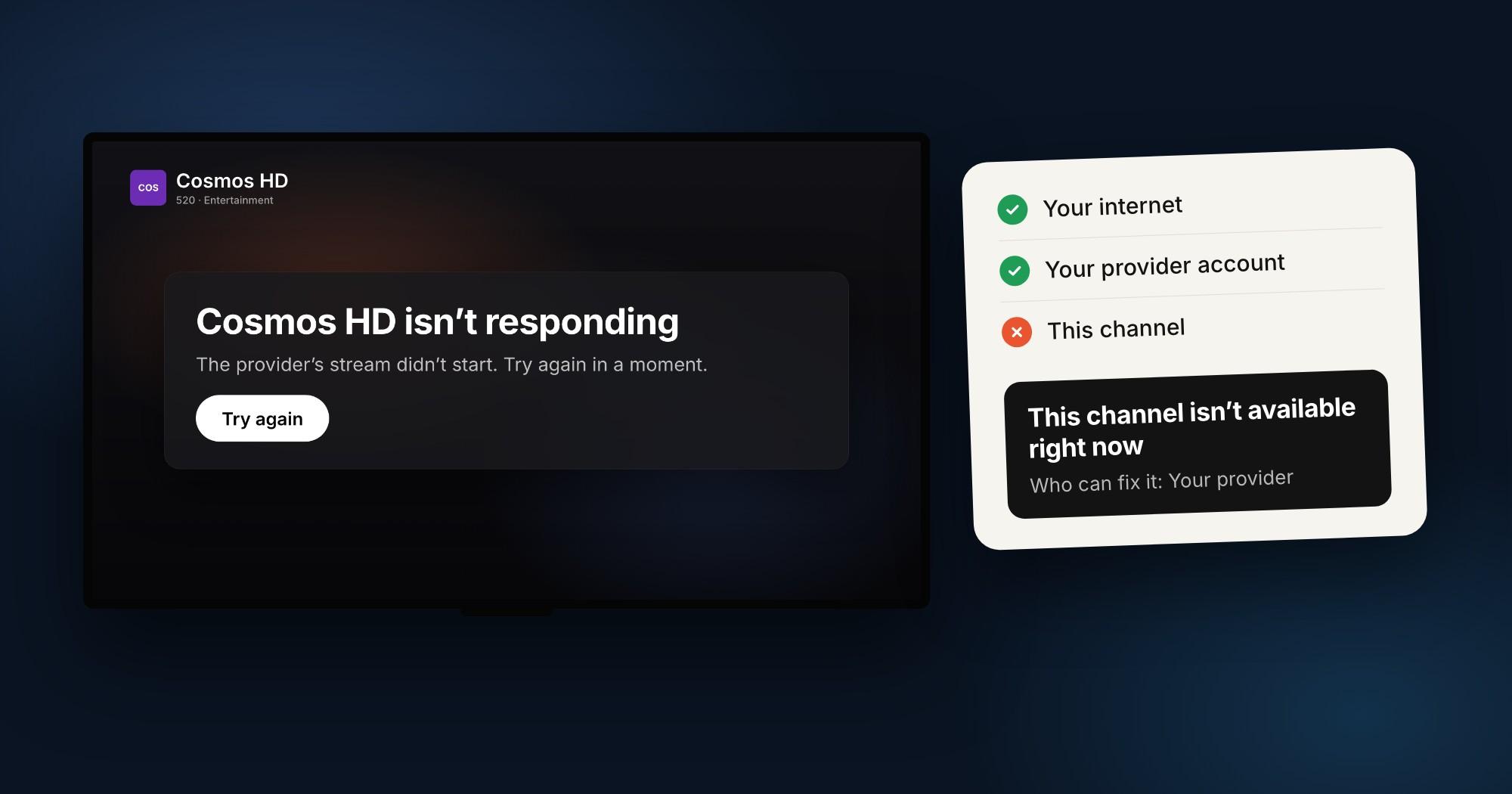
IPTV channel won't play? What each message means
What each IPTV playback message means in Bigplay, from isn't responding to the stream ended early, and the checks and settings that get a channel playing.
24 November 2026
Post · 5 min read
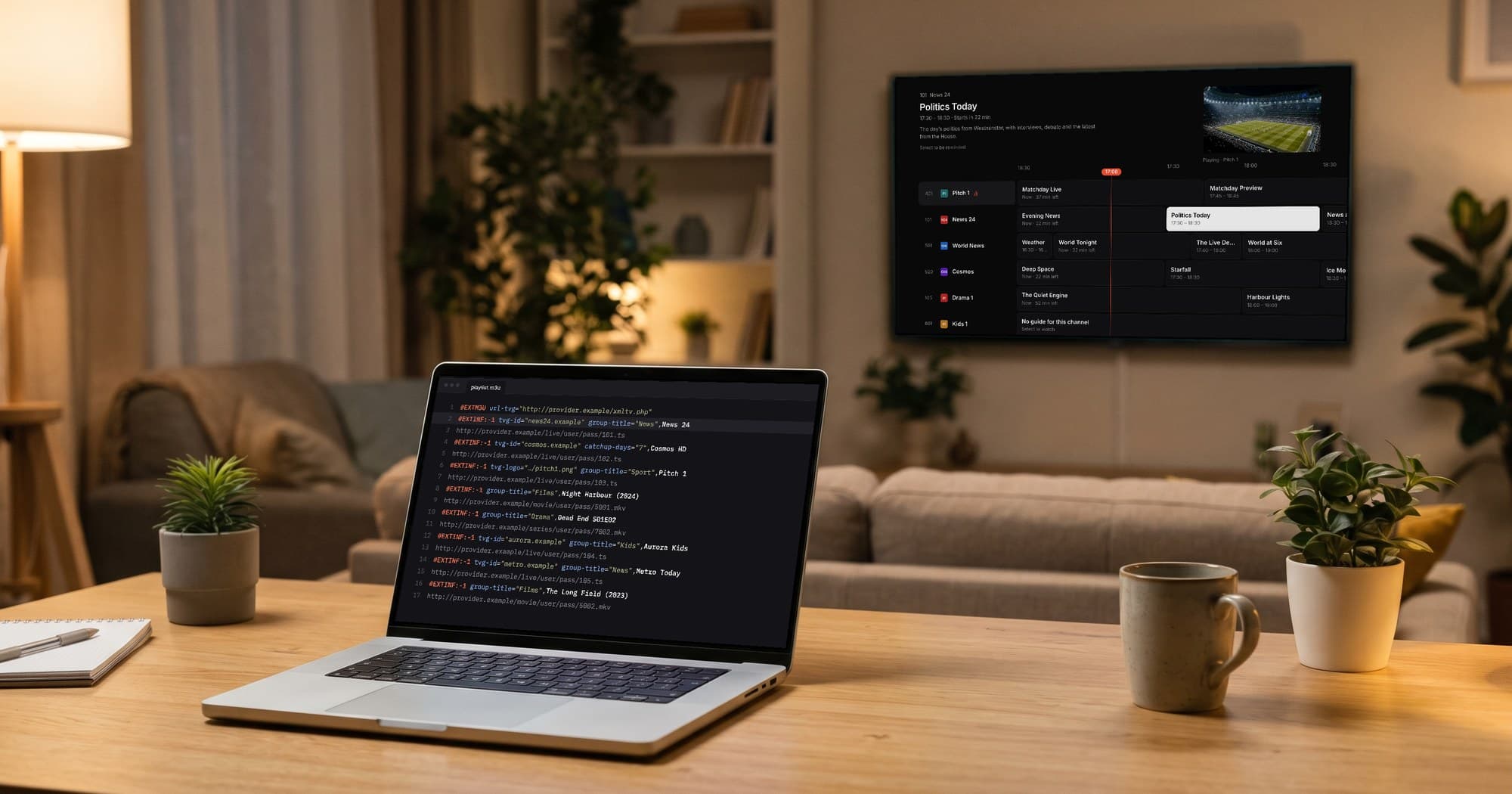
M3U file format: #EXTINF and tvg tags explained
Open an M3U playlist and it's mostly #EXTINF lines. Here's what each tag means, from tvg-id and tvg-logo to group-title, and how Bigplay uses them.
5 November 2026
Post · 3 min read
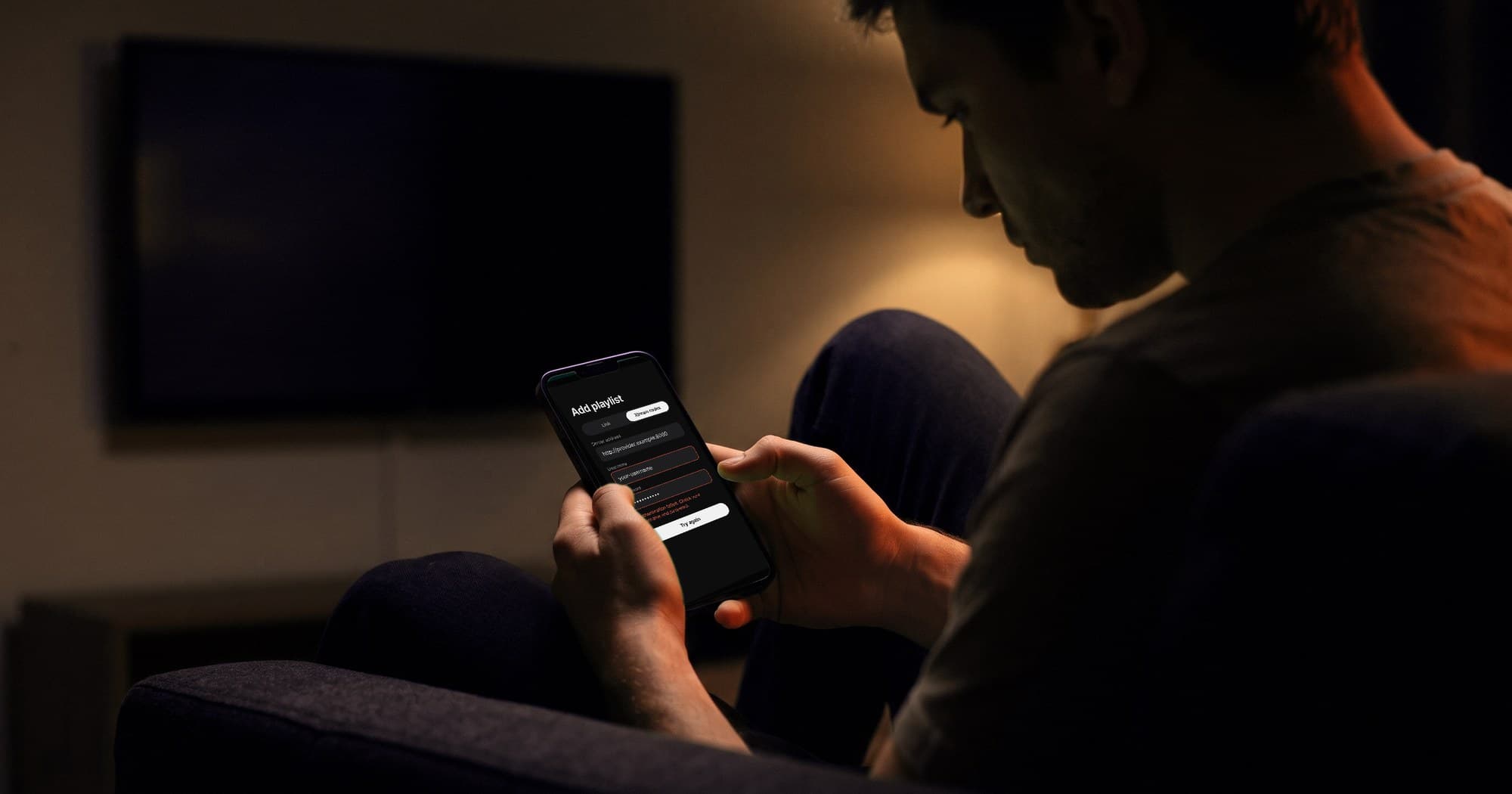
IPTV playlist won't load? What each error means
IPTV playlist won't load? What the common errors really mean, from wrong logins and expired accounts to connection limits, and what to do about each.
31 October 2026
Go on. Press play.