Post · 3 min read · 31 October 2026 · Irfan
How to add an IPTV playlist on Apple TV
Add an IPTV playlist on Apple TV without typing it on the remote: scan a code with your iPhone, or enter your M3U link or Xtream Codes login by hand.
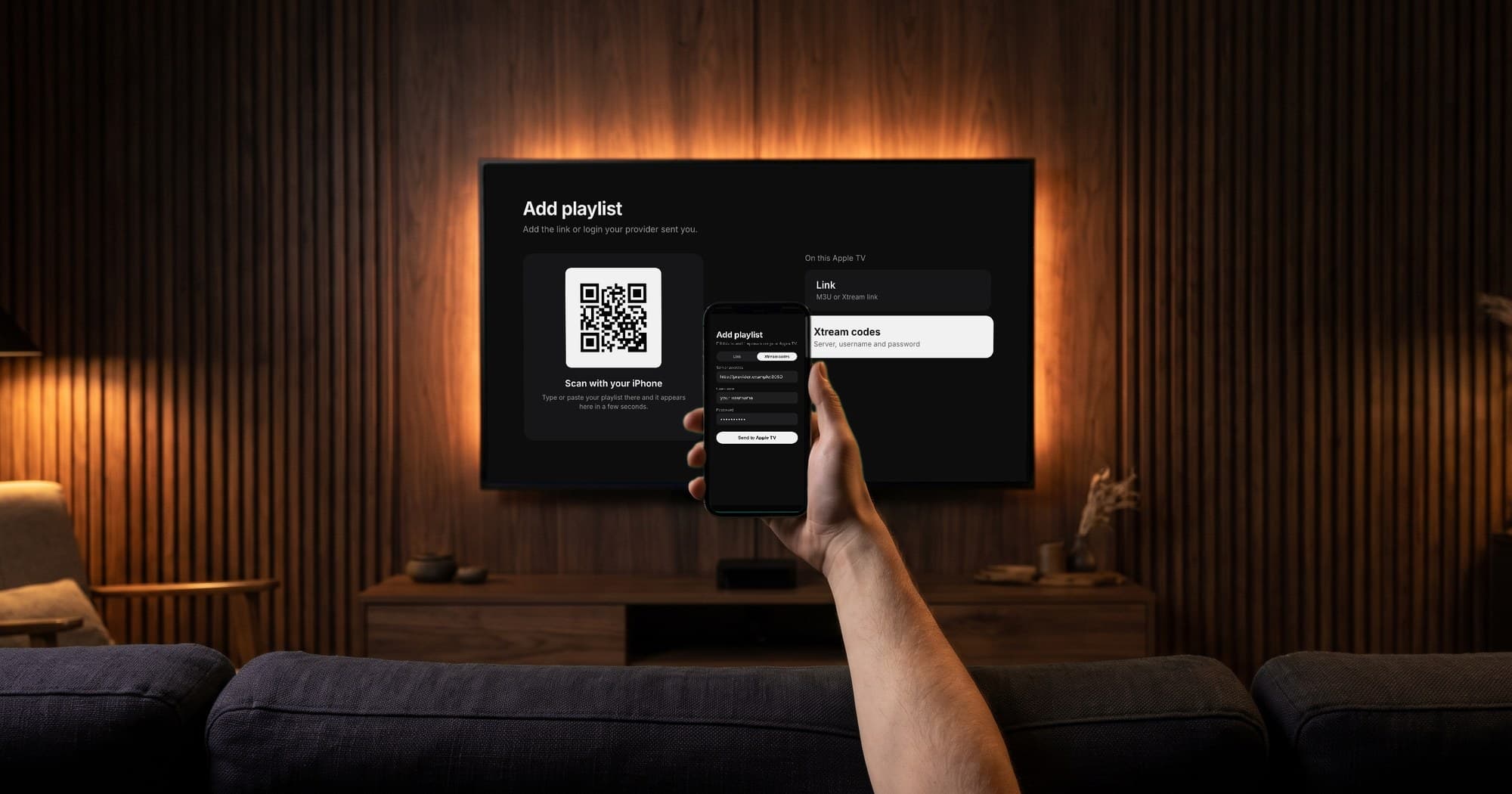
Typing a long playlist link with an Apple TV remote is nobody's idea of a good evening. You don't have to. Bigplay, the IPTV player for your own playlist, lets you fill it in on your iPhone and sends it to the TV.
Bigplay is a player. It doesn't include any channels or content. You need a playlist from your IPTV provider before you start.
What you need
An Apple TV with tvOS 17 or later.
Bigplay from the App Store on your Apple TV.
One of these from your provider: an M3U link, or an Xtream Codes server address, username and password.
An iPhone on the same network, if you want to avoid the remote.
Not sure which one you have? Read M3U or Xtream Codes: what's the difference?
The easy way: use your iPhone
Open Bigplay on your Apple TV and choose Add playlist.
A code appears under Scan with your iPhone. Point your iPhone camera at it and open the page it offers. You don't need to install anything on the phone.
On your iPhone, choose Link or Xtream codes, then paste or type your details.
Tap Send to Apple TV. When you see Sent to your Apple TV, you can put your phone away.
Your iPhone and Apple TV must be on the same network. If they aren't, the page tells you: "That didn't reach your Apple TV. Check this phone is on the same Wi-Fi and try again." If the code has been on screen for a while and has expired, scan the new one on your Apple TV.
The other way: use the remote
On the same screen, look under On this Apple TV.
Choose Link for an M3U link, or Xtream codes for a login.
Fill in Playlist link, or Server address, Username and Password.
Add a Name if you like. It's optional. Leave it empty and Bigplay uses your provider's address.
Select Add playlist.
Xtream Codes is usually the shorter one to type, as the login is three short fields instead of one long link.
If the playlist is already on your iPhone
Bigplay syncs playlists through iCloud, so an Apple TV signed in to the same iCloud account can pick up what you added on your iPhone or iPad. If it does, you'll see Welcome back and can choose your playlist without entering anything.
What happens next
Bigplay shows Loading your playlist while it reads your channels, films and series. It takes about a minute the first time. After that it opens straight to your shows. You can select Start with Live TV if you don't want to wait for the rest.
Adding another playlist later
Open Settings, then Playlists, then Add playlist. More than one playlist on Apple devices is part of Bigplay Pro.
If something doesn't work
A login that fails shows Couldn't sign in with the reason, such as a wrong password or an expired account. What each playlist error means covers them all, and the help page has more.
Once your playlist is in, you can watch four channels at once on the same screen.
More from the blog
Post · 6 min read
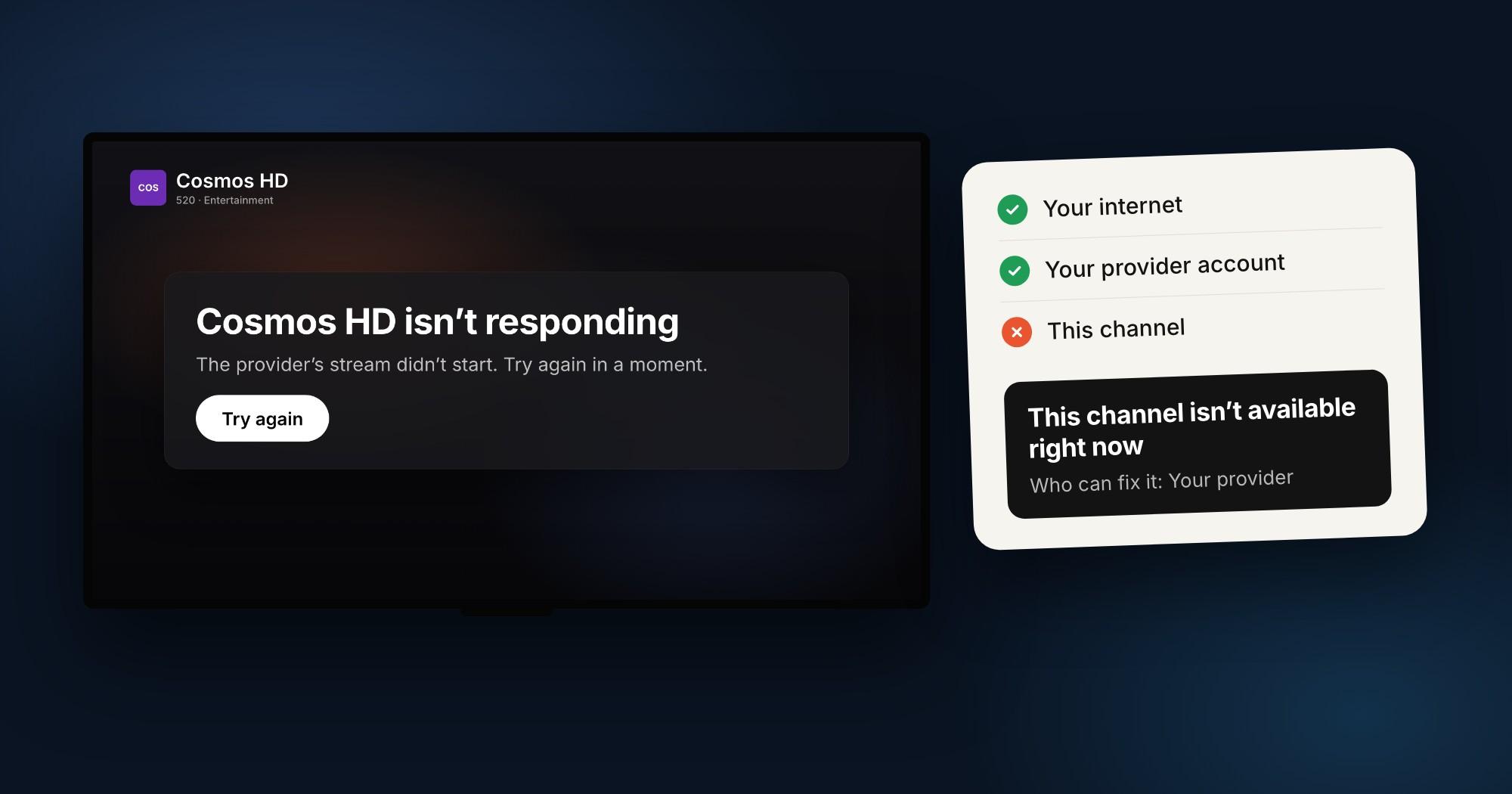
IPTV channel won't play? What each message means
What each IPTV playback message means in Bigplay, from isn't responding to the stream ended early, and the checks and settings that get a channel playing.
24 November 2026
Post · 5 min read
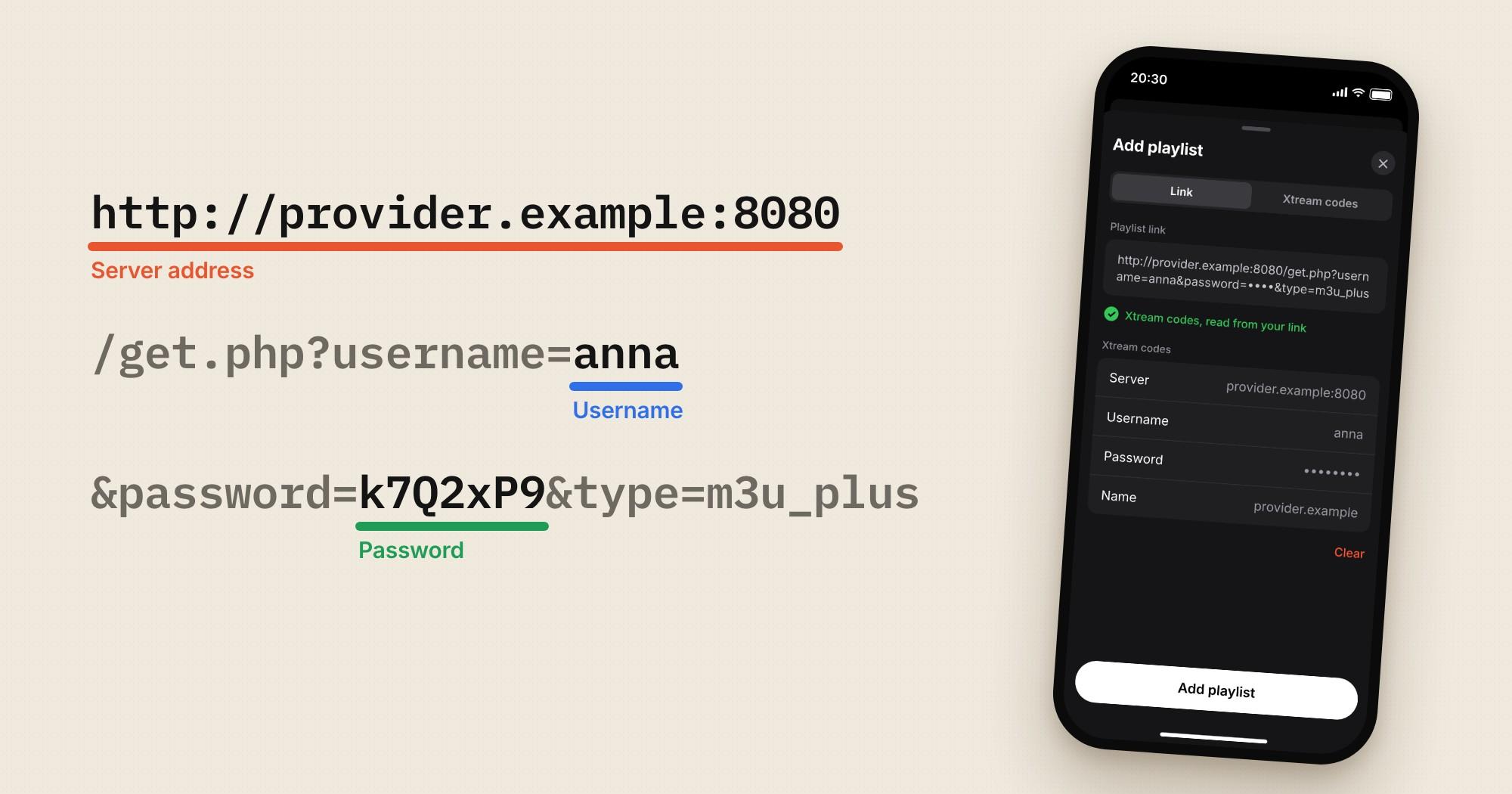
Find your Xtream Codes server, username and password
Your IPTV provider sent a server, username and password, or one long link. Where to find each part, how to read them from an M3U link, and what to type.
24 November 2026
Post · 5 min read
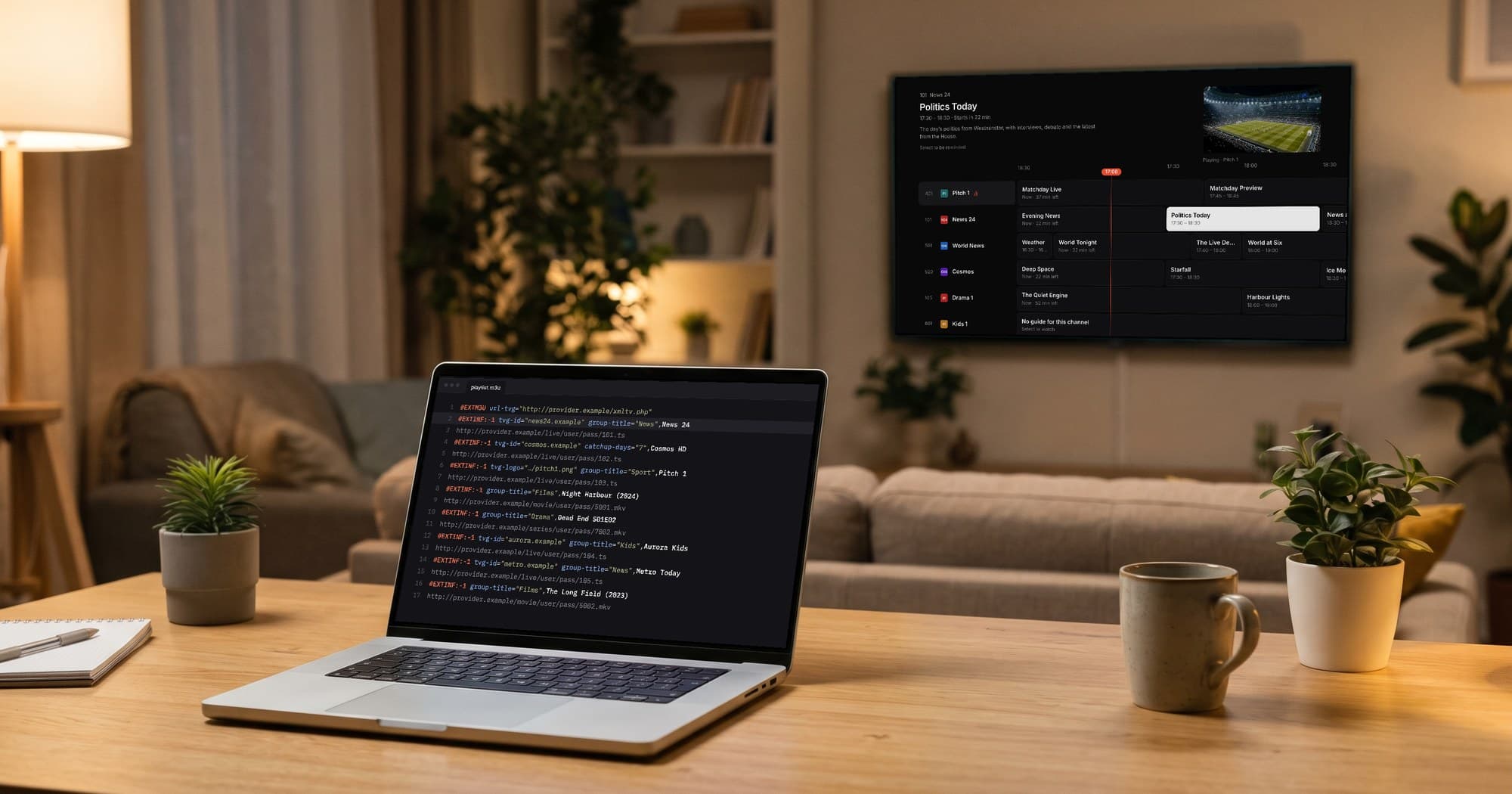
M3U file format: #EXTINF and tvg tags explained
Open an M3U playlist and it's mostly #EXTINF lines. Here's what each tag means, from tvg-id and tvg-logo to group-title, and how Bigplay uses them.
5 November 2026
Go on. Press play.